
How to Manually Install a Theme on WordPress Using the Admin Dashboard?
- August 15, 2021
- 0 Comments
You downloaded a new theme from a trusted website and want to install it on your WordPress site using the WordPress Admin area. If that is the case, follow this tutorial.
1. Login to your WordPress admin dashboard. 2. Under the dashboard menu, hover over Appearance and click on Themes.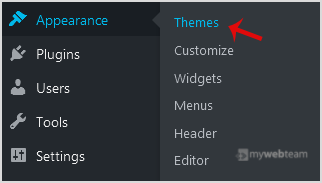 3. Click on Upload Themes.
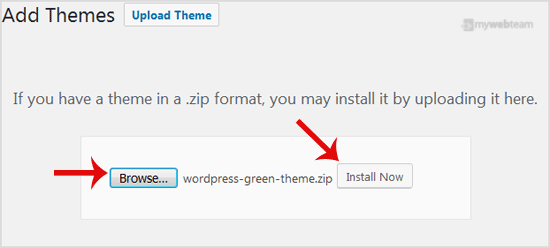
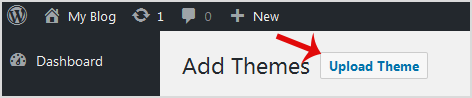 4. Click on Browse and choose a theme compressed in a ZIP file from your PC/Laptop. If your ZIP file contains a folder like an upload, first extract the content of uploaded files and the compressed theme file. Click on Install Now.
 5. It will take a few minutes to upload a theme, and then if it is successfully installed, it will show a message as a Theme installed successfully. Now click on Activate.
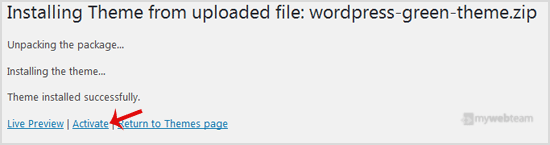 Congratulations, you manually installed and activated a new WordPress theme.